Product guides
Work in your books through conversation with Local Books AI
An assistant that works inside your books: carry out requests, read documents, explore business figures and keep going in the same conversation.
An invoice needs to go out. A receipt needs to get into the books. You want to know how the business is doing this month, without spending the afternoon finding reports.
Work in your books through conversation. Tell the built-in Local Books AI Assistant what you want done, give it a document when one is useful, and continue the conversation as the work moves forward. It can create and update records, carry out bookkeeping tasks, produce reports and answer questions about your business or the application. You choose whether it asks before saving or carries out your requests automatically within your permissions.
This is a working assistant inside your accounting system, with access to the actions and records your role allows. The examples below are starting points, not a fixed menu of requests. You can describe the outcome you need in your own words, ask follow-up questions and work across related tasks without starting over.
Ask about the business, then explore the details
“How are we doing this month?” is a good place to start.
The assistant can bring company figures into the conversation, helping you explore income, expenses, customer balances and other parts of the books. Ask for profit and loss totals for the month, a balance sheet or the invoices a customer still owes. Follow up when you want to look closer at a particular account, customer or period.
That means you can start with the business question on your mind. You do not have to know the name of every report before asking it. When you need the report itself, ask for a PDF or CSV to open from the reply.
Get work done in the same conversation
The assistant can act on the records behind those figures, too. Find an invoice, update its notes, create one from the details you provide or convert an unbilled estimate into an invoice. Bring up its PDF, preview the email and send it when the recipient and message are ready.
Keep going in the same conversation: look up bills and purchase orders, add a customer or vendor, create a job or record time. For inventory, ask about stock for an item and location, prepare labels or review a build order.
Think about a customer calling with a question about an invoice. You can ask the assistant to find it, look at its details and help with the next step. Or start with an accepted estimate and ask to turn it into the invoice you need.
Let documents supply the details
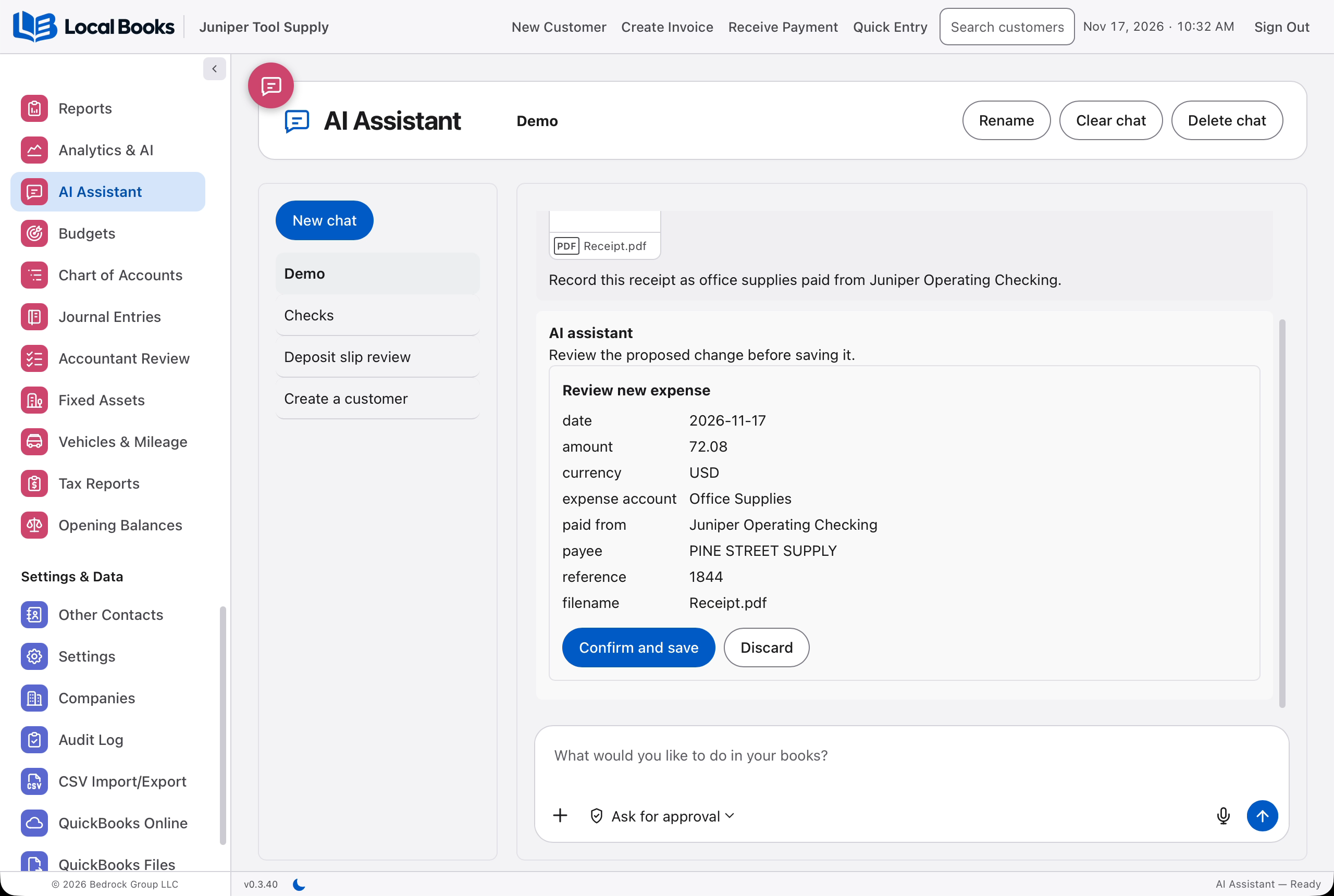
When the information is already on a receipt or statement, drag the photo or PDF into the message box, or attach it with the plus button. The assistant can read the document and ask about missing details, such as which account you paid from, instead of making you retype information it can see.
For a paid expense, ask it to record the purchase and attach the receipt to the entry. You can also record an expense without a receipt when you already have the information. The conversation gives you a way to turn a loose end into a record in the books.
Attach a bank or credit card statement to ask about its contents across multiple pages. For a deposit, identify the bank account and the pending receipts on the deposit slip. The assistant can group those already recorded receipts into a deposit, connecting the money received with its trip to the bank.
Ask how to do anything in Local Books
Have a question about Local Books? Just ask. Find out what a feature does, where to find something or how to complete a task. The assistant can walk you through the steps right in the conversation, so you can get on with your work.
Ask “How do I set up recurring invoices?” or “How do I reconcile my bank account?” Then ask follow-up questions about anything you need explained. Whether you are learning a new feature or working through an unfamiliar task, help is right there inside your books.
Choose your model and your level of review
Connect a provider in Settings > AI & assistants > AI Assistant, then choose a model. Available connections include ChatGPT, Grok and OpenRouter, depending on your installation. The connection is optional, and provider charges or usage limits may apply.
You also choose how changes are approved. Ask for approval lets you review proposed changes before they save. Approve automatically allows requested changes within your own company permissions. Your signed-in role remains the limit on the assistant's access.
Start a request, answer any questions in the conversation and keep working from there. You choose the level of review that suits the task.
Get the assistant and the toolkit behind it
An assistant is more useful when it works with the parts of the business you actually run. Both Local Books editions include accounting, payroll tools, inventory, job costing and reports in a one-time software purchase. Unlimited companies and users are included within each edition's access limits.
That is a concrete purchasing advantage. On the U.S. QuickBooks Online plan page, inventory and project profitability appear in Plus and Advanced, while payroll is an optional addition. Local Books includes its inventory, job costing and payroll tools in both editions, so you can choose the edition for your team's access needs while keeping that broad toolkit.
You get the business toolkit and an assistant that works inside it. From a quick question to a request involving several records, the starting point is the same: tell it what you want to accomplish.
Explore Local Books features to see what comes with your purchase.
Written by Local Books. Product details checked November 17, 2026. QuickBooks is a registered trademark of Intuit Inc.; no affiliation or endorsement is implied.