Give each job a budget
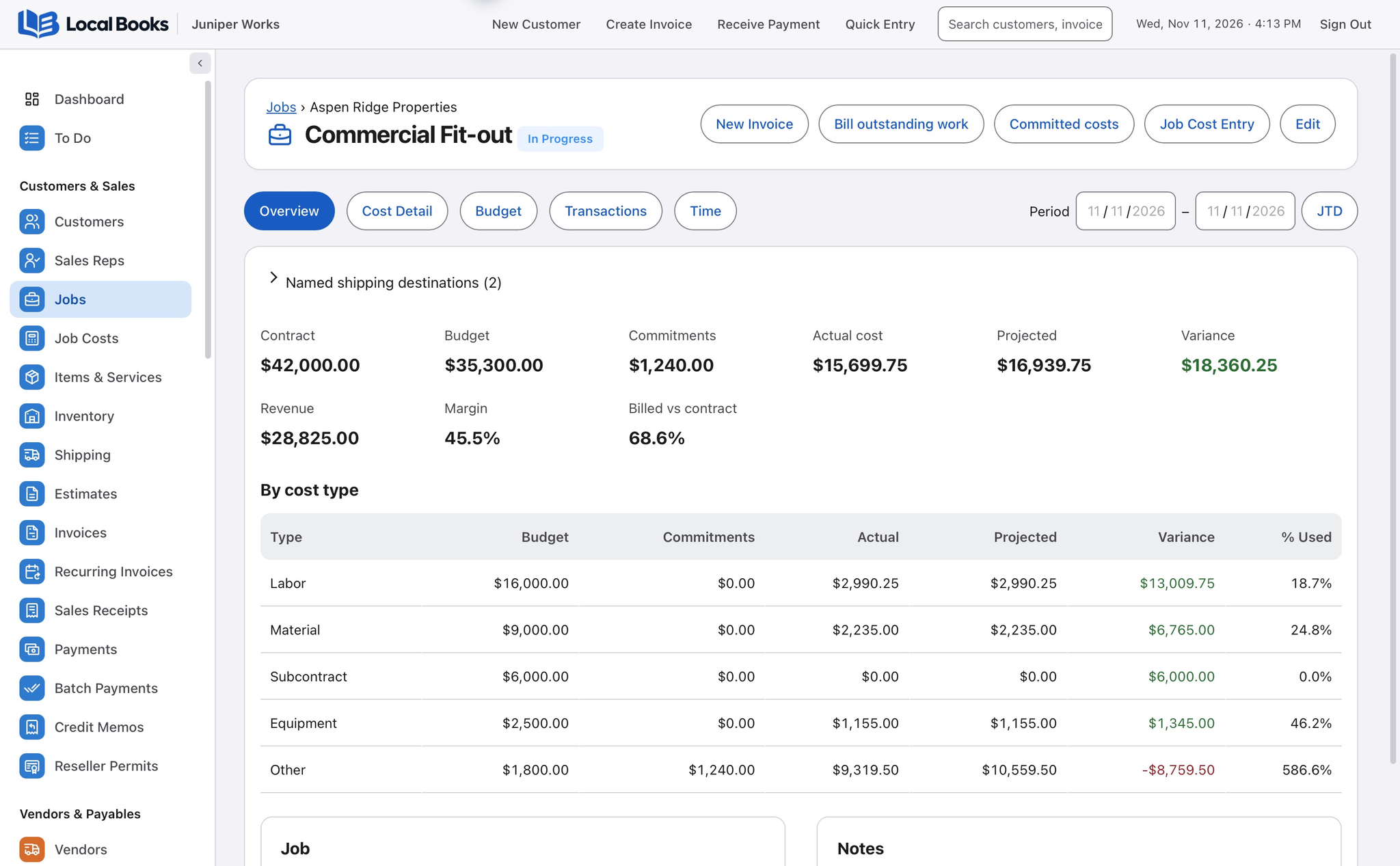
Create a customer job and use cost codes to organize planned spending. For a studio renovation, for example, separate labor and materials so you can see where spending changes as the work progresses.
Assign activity as it happens
Use the job when entering supported expenses, bills and time. Link applicable purchase orders to the job so you can review them beside posted costs. For jobs that bill vehicle mileage, record eligible trips with the job and review selected trip lines on the invoice.
Review posted costs and open orders separately
Job Budget vs Actual compares the budget with posted costs for the period you select. The purchase order section gives order context separately. Review what you still expect to spend before deciding whether an apparent budget surplus is available.
Invoice the accepted estimate in stages
Enable Estimate progress billing in Settings → Jobs & costs. On an accepted estimate, review what was billed and invoice a percentage, selected lines or the remaining balance. Record approved scope changes on a change order, then review how they affect the job budget.
Review work before charging the customer
Use Bill outstanding work to review eligible time, expenses, supplier charges and saved mileage quotes. Set customer time rates by service and effective date. Select the quantities to invoice; unused quantities remain available for later billing.
See what the job earned
Use Job Profitability to review recorded revenue and costs for the job. Check unassigned activity and missing job references before relying on the result. Use the detail report when you need to see the transactions behind the total.
Read the budget in context
Suppose a job budgets $1,000 for materials and has $700 of posted costs. If another $400 is still expected from a supplier, the apparent $300 left in the posted-cost view is already spoken for. Review orders and the vendor’s current delivery status before deciding what the job can still afford.