1. Start in Stock Counts
Open Inventory, choose Stock counts, then select New count. Choose the items and, where applicable, locations to count. Choose a blind count if the counter should enter readings without seeing the expected stock.
2. Collect the quantities you find
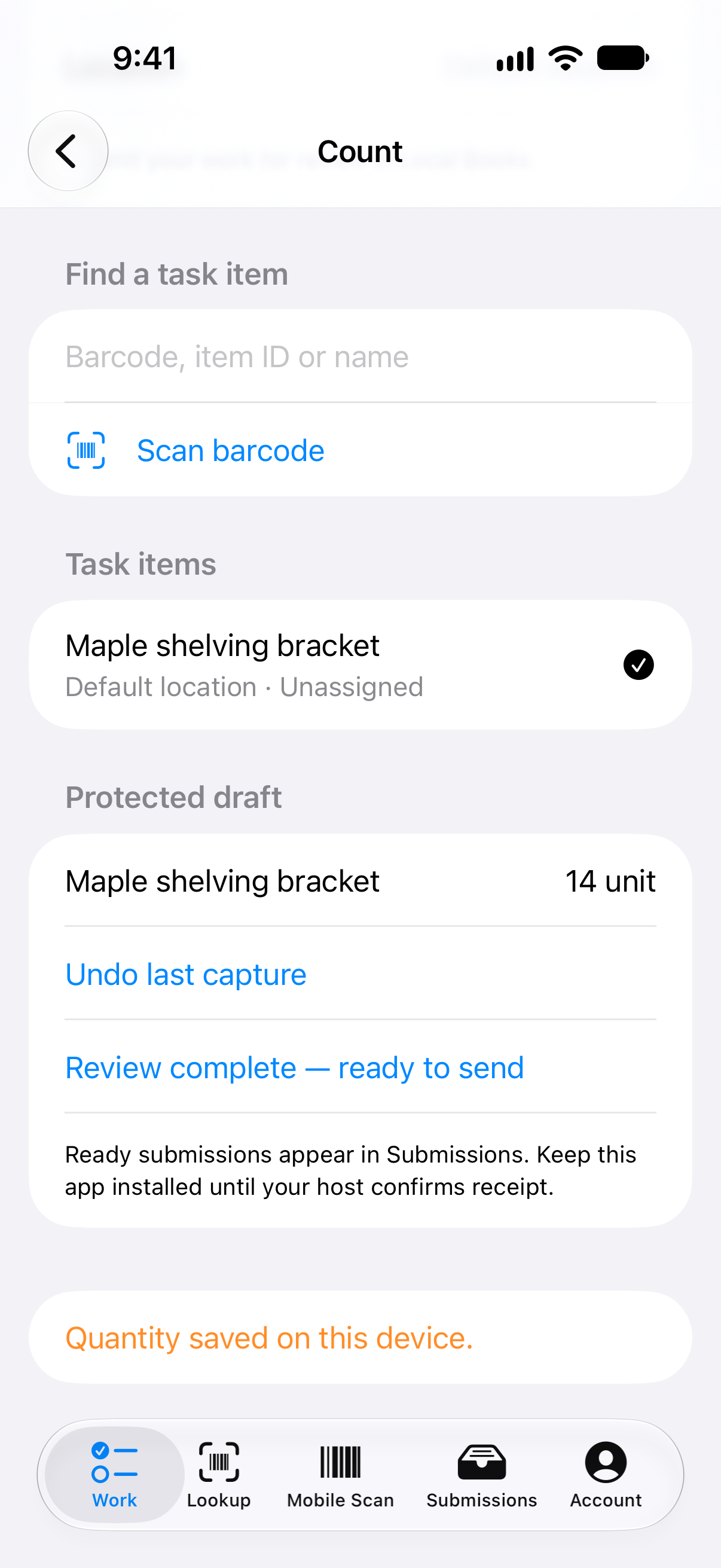
Select the item or scan its barcode to find the correct line. Record what is physically there, including zero for an empty location. Check the unit and bin when an item appears in more than one place. On the desktop, choose Save readings before leaving the count.
3. Assign mobile counting when available
With the required inventory settings, pair the companion with the company host, then assign the count to the staff member who will sign in on the device. In Work, open the assigned count, scan to select the item, and enter the reading or scan individual units. Review and submit the captured count to the host. Check companion availability before planning mobile work. Desktop counts can be completed today.
4. Review before posting
For a mobile submission, use Review and apply to bring the readings into the count. Review the saved readings and any stock movements that occurred during the count. Choose the adjustment account and enter any required cost, then use Accept review to check the proposed adjustment before posting.
Applying readings records what was counted. Posting the reviewed adjustment updates the books.