
Inventory
Why your inventory count doesn’t match your records
The shelf and the software disagree. Here is what to check before changing the quantity, and how to keep the same discrepancy from coming back.
Your software says there are 24 units. You count 19. Before you change the record, check that both numbers describe the same item, in the same unit, at the same location and point in time. Then look for a receipt, sale, return or transfer that explains the difference.
A stock adjustment can correct the quantity. It cannot, by itself, tell you why the discrepancy happened or prevent it from happening again. Here is a practical way to work through a mismatch without turning every stock count into a full investigation.
First, make sure you are comparing the same stock
Start with the product code, size and variant. Two products can look almost identical on a shelf and still have different inventory records. Confirm that the barcode you scanned belongs to the item you counted.
Check the unit next. Two unopened cases of six are 12 individual units, not two. A case barcode and a single-item barcode may identify different selling units. If the software expects individual units, convert the count before comparing it with the record.
Then check the location and stock status. A shelf count may exclude the back room, a display, a delivery vehicle or a returns area. A quantity labeled “available” may exclude stock already reserved for orders. Compare your physical count with the corresponding on-hand record, and account for anything deliberately excluded.
Receiving mistakes, missed transactions and inconsistent units are all recognized causes of quantity discrepancies. Shopify’s guide to inventory adjustments identifies these separately from damage and theft. A shortage alone does not establish its cause.
Give the count a clear cutoff time
Write down when you counted. If someone sells three units after your count but before you check the software, the two totals can differ even when both were correct when recorded.
For a small area, pause stock movements while it is counted if practical. If work must continue, record the sales, deliveries and transfers affecting that area, including whether they happened before or after the count. Keep newly arrived goods separate until you know whether they belong in the count.
Counting during quieter hours can reduce these timing problems. Shopify’s inventory-count planning guidance also calls out sales between counting and submission as a source of discrepancies. Whatever software you use, compare quantities at a consistent time.
Check the records before making an adjustment
Recount the item, preferably with a second person who has not been told the expected quantity. Then review recent activity. Use the table below as a starting point, not as proof that a particular mistake occurred.
| What you find | What to check next |
|---|---|
| The shelf has less than the record | Short deliveries, unrecorded sales, damage, returns to suppliers or stock stored elsewhere |
| The shelf has more than the record | Receipts or customer returns not entered, duplicate sales entries or the wrong product selected |
| The difference is a whole case or pack | The purchase unit, count unit and conversion to individual items |
| One location is short and another is over | Transfers, receipts posted to the wrong location or misplaced goods |
| The difference appeared during the count | Sales, receipts and transfers between the count time and the comparison time |
A purchase order tells you what was ordered. Check the actual receiving record against the delivery paperwork and what arrived. If you ordered 20 and received 15, recording all 20 as received creates a five-unit difference before anything has been sold. The partial-receipt guide shows how to handle that situation in Local Books.
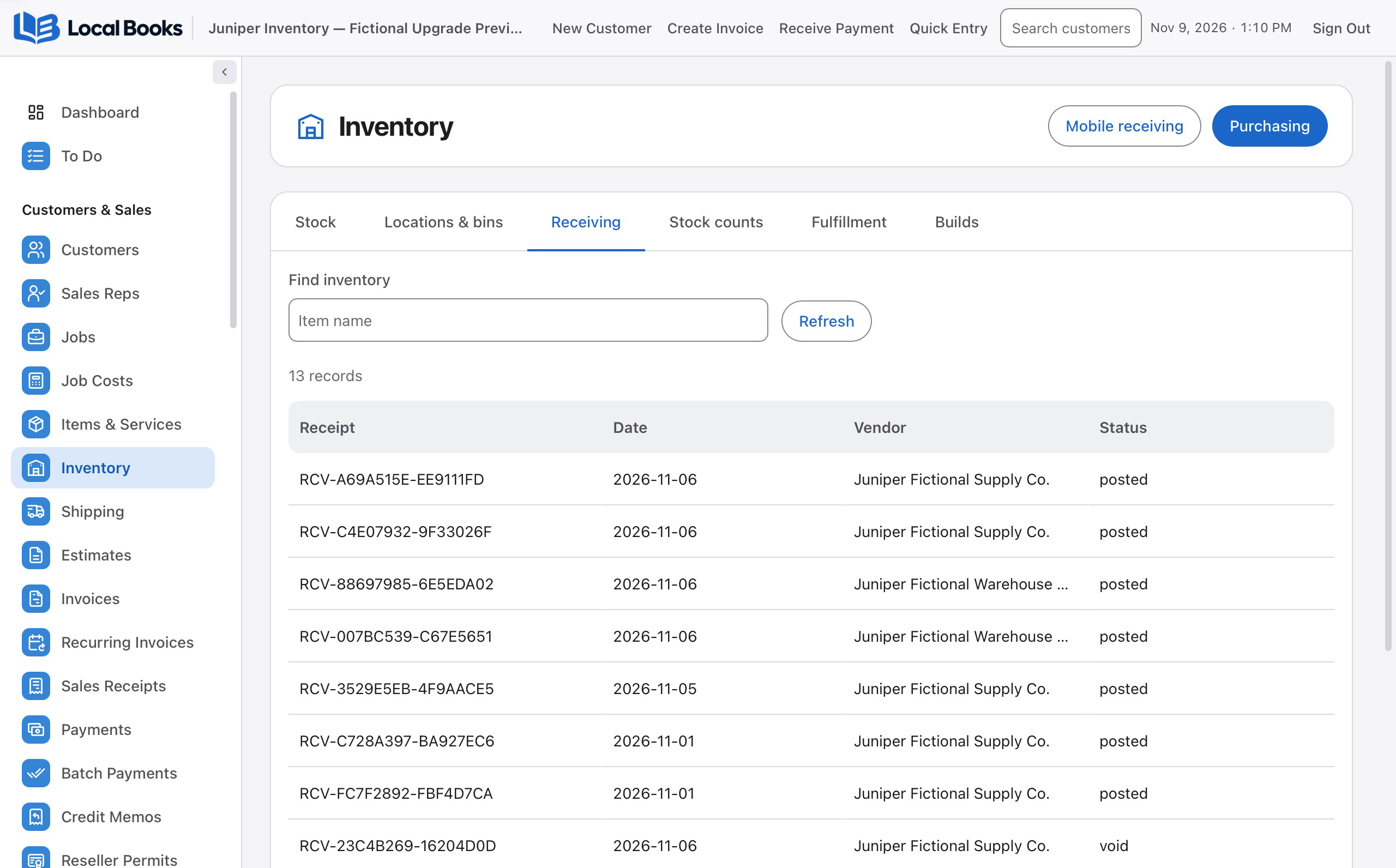
Check what your particular system uses to update stock. For example, Intuit’s negative-inventory guidance distinguishes ordering goods from entering the transactions that update inventory. Do not assume that saving an order has recorded a delivery.
A five-unit difference does not always need a five-unit write-off
Suppose your records show 24 desk organizers and your first count finds 19. These numbers are a fictional example.
You find two more in a display, bringing the physical total to 21. The receiving paperwork then shows that a recent delivery contained nine organizers, although someone recorded 12. That three-unit receiving error explains the remaining difference.
The appropriate correction is to address the receiving error through your system’s supported correction process. Posting a separate three-unit stock loss and later correcting the receipt could reduce inventory twice. Keep the original document reference and the explanation with the correction.
If the recount still leaves an unexplained shortage, document that honestly. “Unexplained shortage after recount” is more useful than assigning a cause you have not established.
Review the effect on the books
Once the quantity is verified, review any proposed adjustment before posting. Check the item, quantity difference, date, inventory value and account affected. A quantity correction and a cost correction are different questions: confirming that you have 21 units does not establish what those units should be valued at.
Physical counts help verify inventory records, but valuation also depends on the accounting method and the underlying transactions. OpenStax’s accounting explanation describes how physical counts and inventory adjustments relate to the books. Have your bookkeeper or accountant review material losses, changes involving closed periods, or an adjustment whose accounting effect you do not understand.
Keep a short record you can use next time
For a discrepancy worth investigating, save the item and location, count time, expected and counted quantities, related document references, confirmed cause or unresolved question, correction and reviewer. A note such as “receipt 104 entered as 12; packing slip and recount confirm nine” gives the next person something to check.
Give unresolved differences an owner and a follow-up date. If the same product is short repeatedly, compare the earlier notes before starting over. Decide which items need more frequent counts based on their value, movement and discrepancy history, rather than waiting for a single annual stocktake to reveal every problem.
Put the count and the review in one workflow
In Local Books, start in Inventory > Stock counts. Choose the items and applicable locations, collect the quantities and save the readings. A blind count lets the counter enter what they find without seeing the expected quantity. Review the differences and proposed adjustment before posting it.
Use the stock-count walkthrough for the steps, or explore inventory and purchasing to see how counts, receipts and stock records fit together. Available workflows depend on your inventory settings and staff permissions.
For your next count, choose one manageable shelf or product group. Agree on the unit and cutoff time, recount any difference, and check the receiving and sales records before changing the quantity. You will finish with both a more reliable count and a clearer idea of what needs attention.
Written by the Local Books team. Sources checked November 9, 2026. The numerical example is illustrative; linked product instructions describe their respective systems.